 Modest Kit
Set up your shortcuts
Modest Fill has two shortcuts. Your browser decides which keys they use, and you can change them in a minute.
| Shortcut | Mac | Windows and Linux |
|---|---|---|
| Fill with a random test person | Control ⇧ F | Ctrl Shift F |
| Fill with my saved details | Control ⇧ D | Ctrl Shift D |
On a Mac these use the Control key, not Command. Clicking the Modest Fill icon in the toolbar does the same as the first shortcut.
Change a shortcut
- Open the shortcuts page. The quickest way: right-click the Modest Fill icon, choose Options,
then click Change shortcuts. Or type the address for your browser into the address bar:
Chrome chrome://extensions/shortcutsBrave brave://extensions/shortcutsEdge edge://extensions/shortcuts - Find the Modest Fill card.
- Click the pencil next to the shortcut you want to change.
- Press the new keys together. They must include Ctrl or Alt (on a Mac, Control, Command or Option), plus a letter or number.
- Leave Scope set to the browser ("In Chrome", "In Brave"). Modest Fill only works on the page in front of you, so it has no use for "Global".
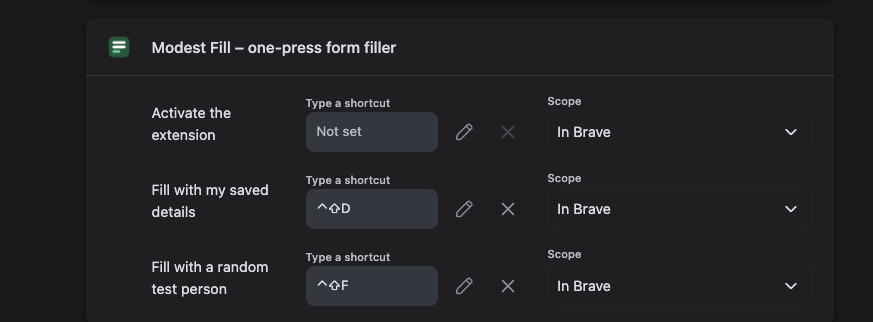
A shortcut says "Not set"
Your browser gives each key combination to one extension only. If another extension, such as a different form filler, already uses Ctrl Shift F, the browser quietly leaves Modest Fill's shortcut empty. Nothing happens when you press the keys.
To fix it, either remove the shortcut from the other extension on the same page, or give Modest Fill different keys using the steps above.
The Modest Fill settings page shows a red "Not set" label when this happens, so you can spot it straight away.
The shortcut does nothing on some pages
Browsers block all extensions on their own pages (settings, new tab, the extension store) and on some built-in viewers such as PDFs. Modest Fill works on ordinary websites.
One button on a Stream Deck or macro pad
Because Modest Fill is just a keyboard shortcut, any device or app that can press keys can trigger it.
- In the Stream Deck app, drag the Hotkey action (under System) onto a key.
- Click the hotkey box and press the same keys as in your browser, for example Control ⇧ F.
- Add a second key for Control ⇧ D if you use "My details". Give the two keys clearly different icons, so you never send your real details by mistake.
The same works with keyboard macro tools such as Keyboard Maestro, AutoHotkey or BetterTouchTool.